Google Sheets add-on
The Genderize.io for Google Sheets™ add-on predicts gender for a column of names inside Google Sheets. It also includes the
=GENDERIZE
custom function.
Install from Google Workspace Marketplace
Install
Open the Marketplace listing, click Install, and approve the access request. The add-on then appears in every spreadsheet under Extensions → Genderize.io for Google Sheets™.
Add your API key
The add-on requires a genderize.io API key. Copy yours from your dashboard, or create an account to get one.
-
Step 01
Open the sidebar
Choose Extensions → Genderize.io for Google Sheets™ → Predict gender (sidebar). -
Step 02
Save the key
Open the API key section, paste the key, and click Verify & save. The key is saved to your Google account, so it applies to every spreadsheet you open.
The API credits bar at the bottom of the sidebar shows the names the key has used and its limit.
Predict gender
Choose Extensions → Genderize.io for Google Sheets™ → Predict gender (sidebar). The sidebar reads the header row and suggests the next two empty columns for the output.
| Field | Description |
|---|---|
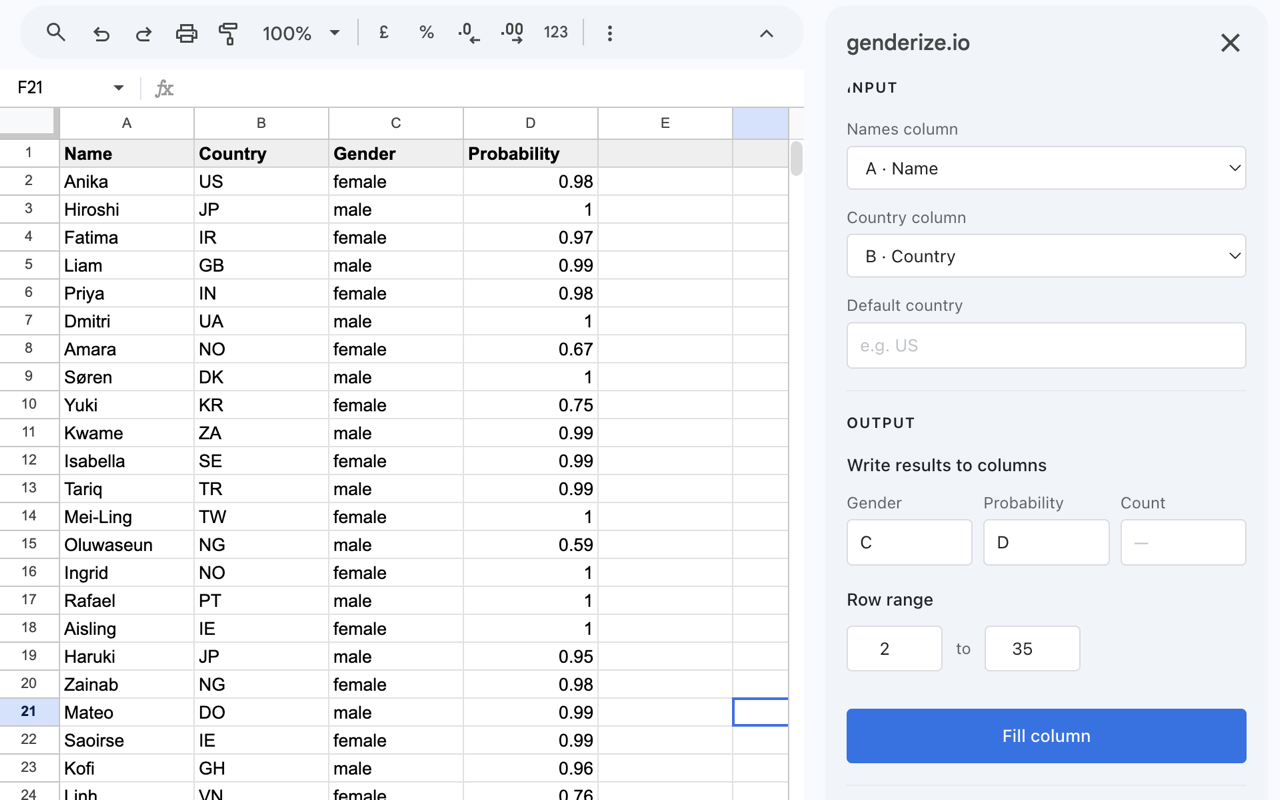
| Names column | The column with the names. First names and full names both work. |
| Country column | Optional. A column with a two-letter country code for each row. |
| Default country | Optional. A two-letter country code for rows without one. |
| Gender, Probability, Count | The column letters to write each result to. Leave a field empty to skip that output. Count is the number of data rows behind the prediction. |
| Row range | The first and last row to fill. Defaults to row 2 through the last row with data. |
| Skip rows that already have a result | Leaves rows alone when any of their output cells has content. |
Click Fill column. When the fill ends, the sidebar shows the gender split for the range, for example "412 names: 60% female, 40% male".
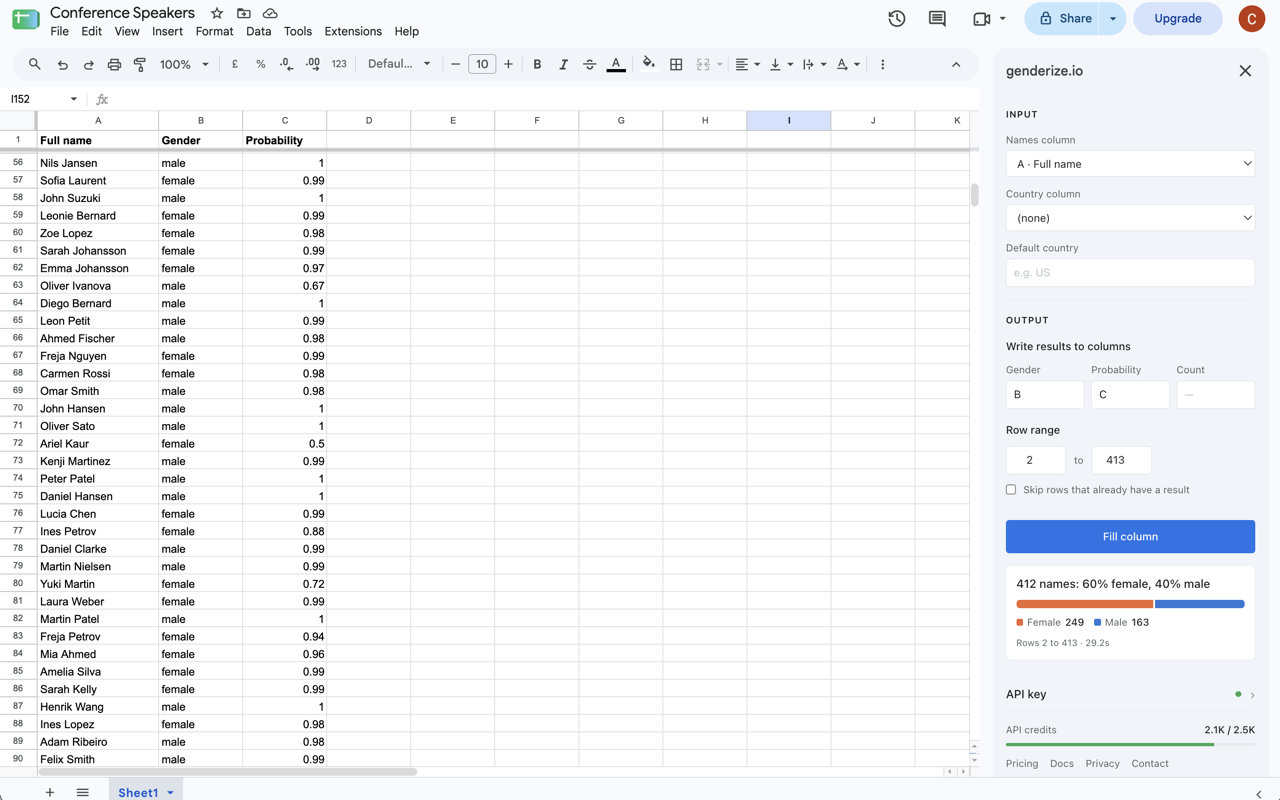
The results are plain values. Count them with standard formulas, for example
=COUNTIF(B2:B413, "female") / COUNTA(A2:A413)
for the female share.
Large sheets
The add-on sends up to 100 names per request and shows its progress while it runs. Google stops an add-on run after six minutes, so a very large range can end before every row is filled. The rows filled so far stay in the sheet.
To continue, click Fill column again. The sidebar ticks Skip rows that already have a result after a stopped run, so the next run fills only the empty rows.
A run also stops when the key has no names left. The sidebar reports how many names remain and when the limit resets.
Country codes
Some names lean differently from country to country. A two-letter ISO 3166-1 code, such as
US
or DK, scopes the prediction to that country. A code in the country column takes precedence over the default country.
Custom function
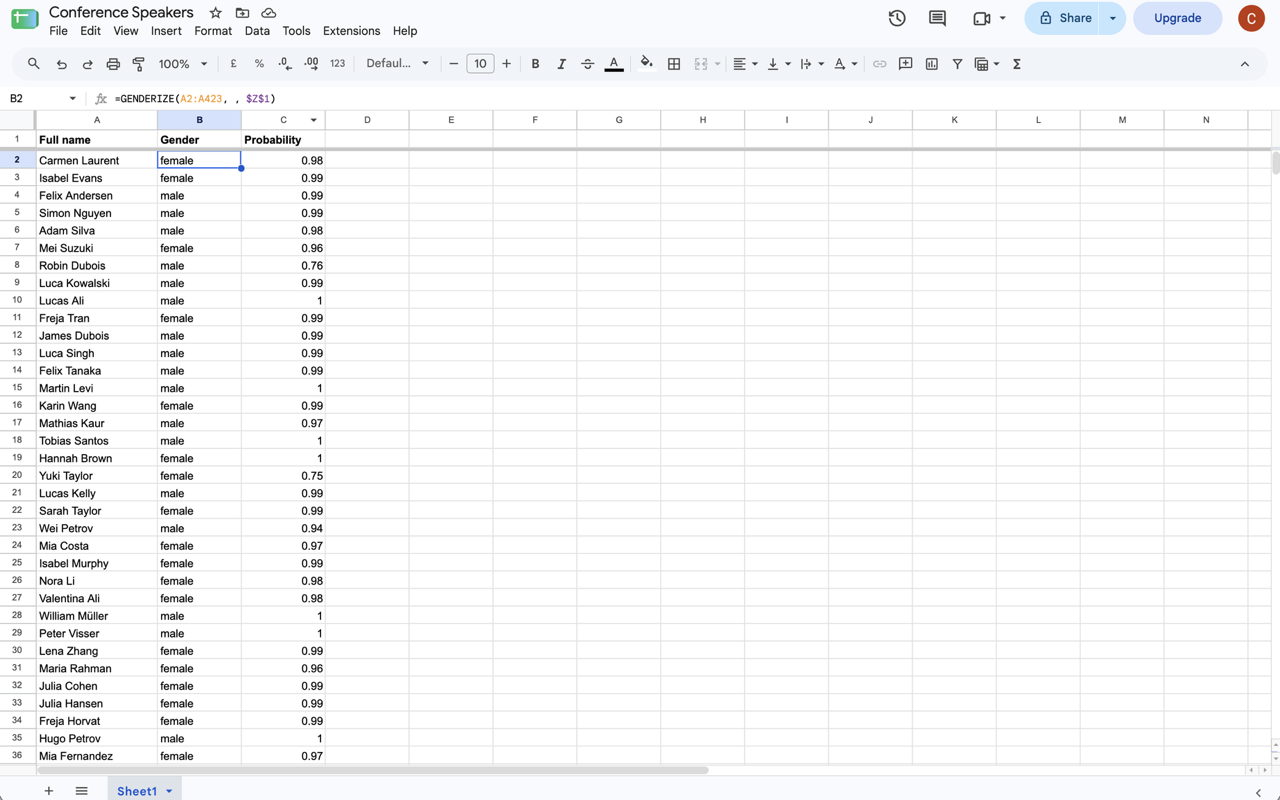
Enter the formula in the first output cell. It fills gender and probability for the whole range, in two columns.
=GENDERIZE(A2:A500, , $Z$1)=GENDERIZE(A2:A500, "US", $Z$1)| Argument | Required | Description |
|---|---|---|
input
|
yes | A range of names, such as A2:A500. |
countryId
|
no | A two-letter country code applied to every name in the range. Leave it empty to skip. |
apiKey
|
yes | Your API key, or the cell that holds it. The custom function does not read the key saved in the sidebar. |
Access
The add-on requests three permissions.
| Scope | Used for |
|---|---|
spreadsheets.currentonly
|
Reading the names and writing results in the spreadsheet the add-on is open in. It has no access to other files. |
script.external_request
|
Sending names to api.genderize.io, the only address the add-on can reach.
|
script.container.ui
|
Showing the Extensions menu, the sidebar, and the help dialog. |
The add-on privacy policy lists what the add-on reads, sends, and stores.